How to preview and test your campaign
Before you send a campaign in Sendigram, it's important to preview and test it. This step ensures your message looks great on every device, personalization works correctly, and links function as intended.
1. Why Preview and Test?
- Detect formatting or design issues before sending.
- Confirm your campaign looks good on desktop and mobile.
- Check subject line and preheader appearance in the inbox.
- Verify links, images, and buttons are working.
- Test personalization fields like
{*{First Name}*}.
2. Previewing Your Campaign
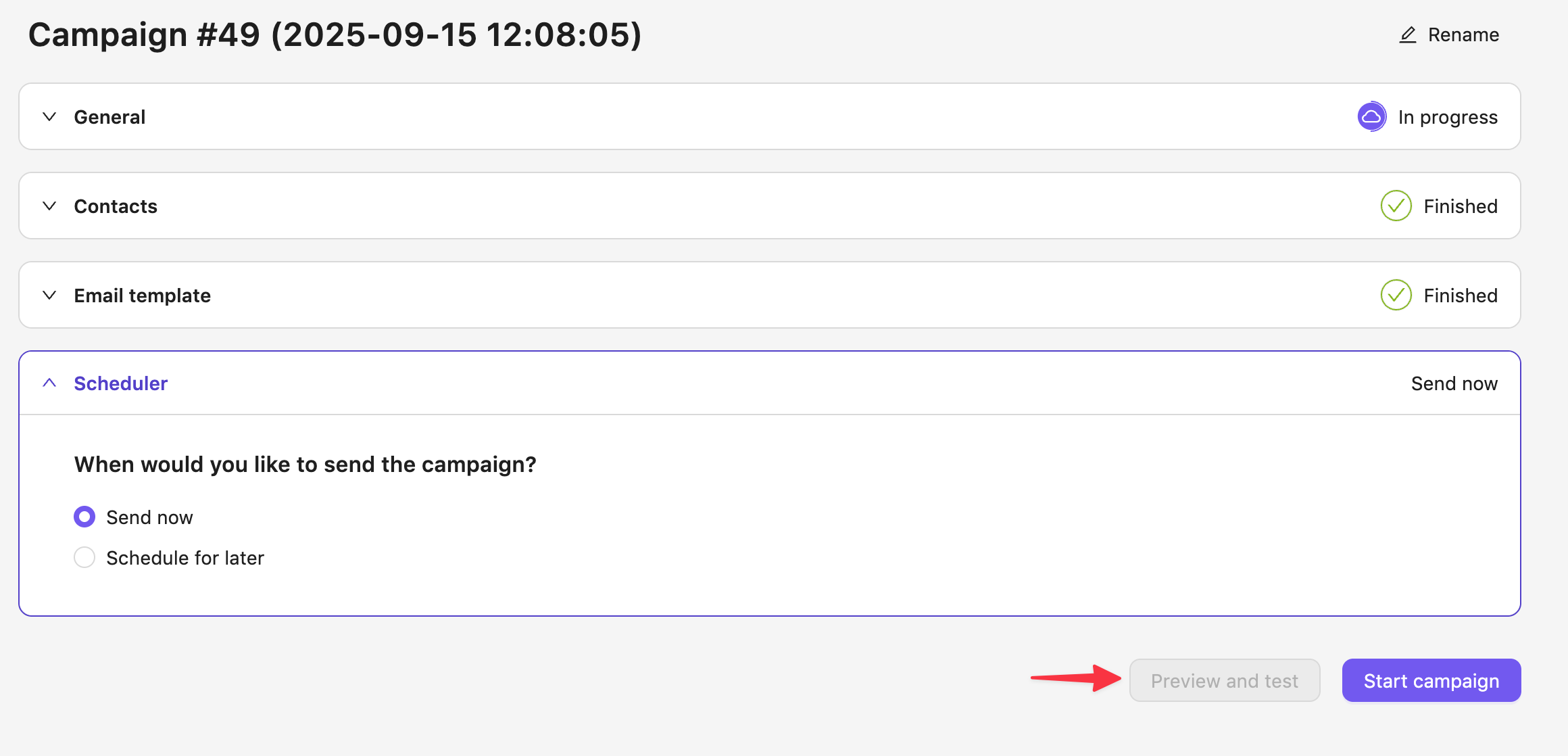
- Open your campaign and fill all the blocks: General, Contacts, Email Template and Scheduler.
- In the right bottom corner of the screen click Preview and test.
- Switch between:
- Desktop view – see the standard inbox layout.
- Mobile view – check responsiveness for smaller screens.
- Review text formatting, image placement, and overall layout.
3. Send a Test Email to Your Own Address
Check for:
- Correct formatting.
- Working links and CTAs.
- Display of personalization tokens.
4. Testing Personalization & Dynamic Content
- Use test contacts with filled-in contact parameters (e.g., First Name, City).
- Verify fallback values work when fields are empty (e.g., "Hello, Subscriber!").
5. Final Pre-Send Checklist
- Subject line and preheader are clear and compelling.
- All personalization tags render correctly.
- Links and unsubscribe button work.
- Email looks good on both desktop and mobile.
- No typos or broken images.
Still have questions?