Understanding domain statuses: Verified, Processing, Unverified
Managing sending domains
Why DNS records matter for email deliverability
Adding & verifying DNS records (SPF, DKIM, DMARC)
Checking & resolving domain blacklist issues
Managing sender email addresses
Sender address requirements and best practices
What to do if a sender address is in use by active campaigns
Understanding shared vs. dedicated IP addresses
Connecting or disconnecting a domain to/from an IP address
Buying & managing dedicated IP addresses
User roles & statuses
User status explained: active and deleted users
How to add a new user: user invitations and registration
Managing user permissions and access rights
Default permissions for additional users
Deleting users
Transferring admin rights to another user
What happens after admin rights are transferred?
What happens when permissions are disabled for a user?
How to create your first email campaign
Campaign card overview: General, Contacts, Email template, Scheduler
Naming and renaming campaigns
Understanding campaign statuses: Waiting, In progress, Paused, Finished
Saving progress and navigating between campaign blocks
How to set up the sender email address and name
Managing reply-to addresses in campaigns
Selecting and managing IP addresses for sending
How to select recipients: Contacts, Groups, Segments
Excluding contacts and groups from a campaign
Understanding contact limits and subscription packages
What to do if you exceed your email sending limit
Validating contacts before sending: Email Checker explained
Choosing and editing email templates for campaigns
Uploading custom HTML
Writing effective subjects and preheaders
Personalizing Your Subject Lines and Preheaders
Adding and managing UTM parameters
Scheduling campaigns: send now or later
Setting up delivery dates, times, and days of the week
How to calculate and adjust sending volume over time
Managing dedicated IP expiration and renewal
Understanding autowarmup in Sendigram
How to preview and test your campaign
Managing and editing your test email group
Using the campaign calendar: viewing, filtering, and creating campaigns
Understanding campaign statuses: Active, Scheduled, Completed
Viewing campaign details and quick actions from the calendar
Navigating the campaign list: columns and filters
Searching and filtering campaigns by name, date, and status
Campaign card: overview, timeline, and audience
How to pause, continue, or delete a campaign
Understanding campaign statuses: Planned, Active, Paused, Finished
Campaign performance & analytics
Using heatmaps to analyze email engagement
How to start and complete onboarding
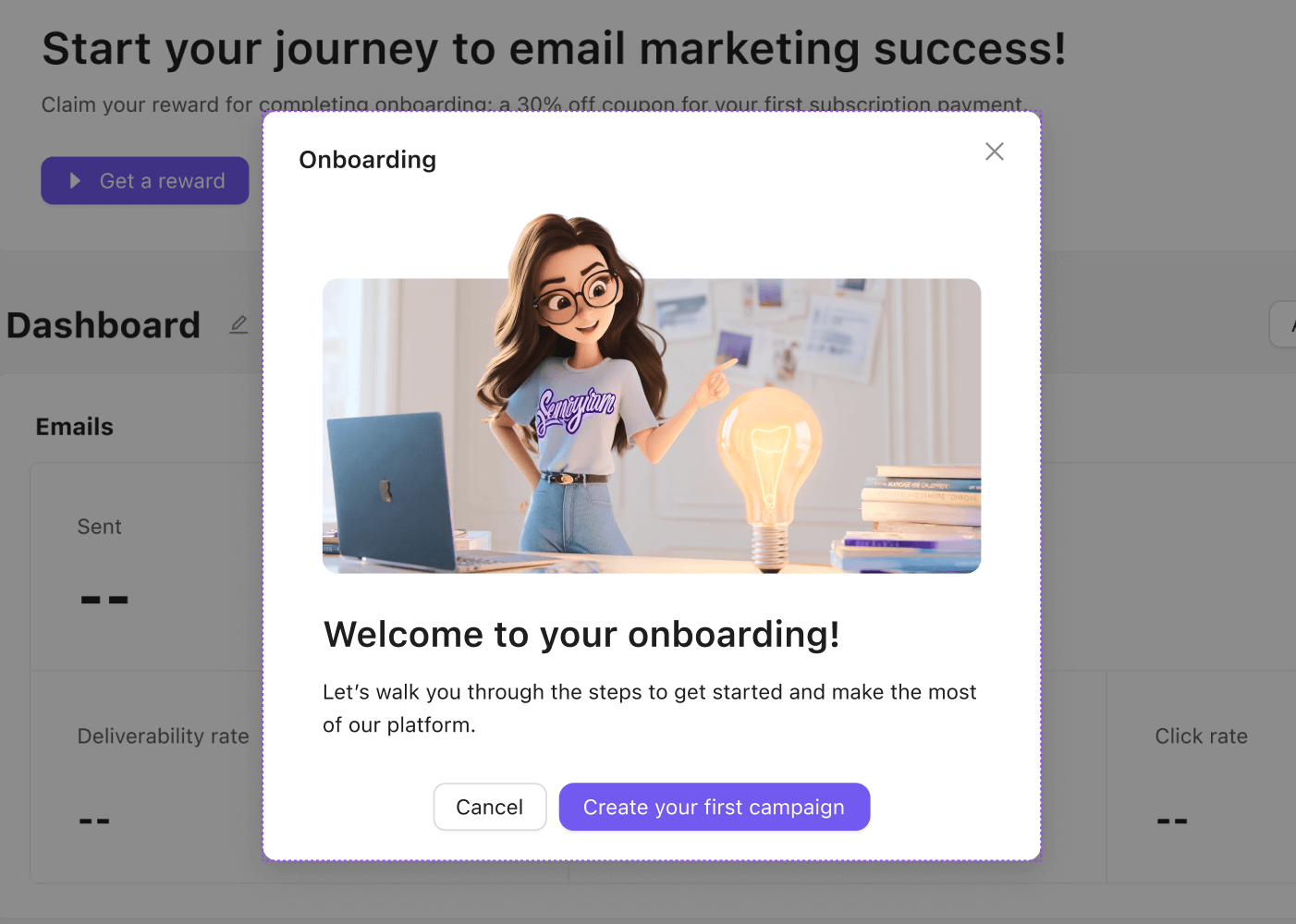
When you first sign up for Sendigram, the platform guides you through an onboarding process. This helps you quickly set up your account, connect your contacts, and launch your first campaign.
1. Starting Onboarding
After registration, you’ll be taken to the Welcome screen.
Click Create your first campaign to begin.
2. Set Up Your Account
- Confirm your email address (mandatory).
- Complete your profile: name, company, website, and time zone.
- Configure sender details (default “From” name and email).
3. Import or Add Contacts
Choose how to bring your subscribers into Sendigram:
- Upload a CSV/Excel file.
- Add contacts manually.
- Connect via API or CRM integration.
The system will validate addresses and remove duplicates automatically.
4. Create Your First List
- Name your first contact list (e.g., “Newsletter Subscribers”).
- Add imported contacts to it or create a new empty list to start fresh.
- Lists form the basis of all campaigns.
5. Choose or Build a Template
- Select from pre-made templates.
- Use the Drag & Drop editor to build your own.
- Or paste custom HTML code if you already have a design.
6. Launch Your First Campaign
- Click Create Campaign.
- Enter campaign details (name, subject line, sender).
- Choose a template and a contact list.
- Send a test email to yourself before launching.
- Schedule or send immediately.
7. Completing Onboarding
- Once your first campaign is sent, onboarding is complete.
- The Dashboard will now display your campaign metrics and contacts overview.
- You can explore advanced features (automation, segmentation, analytics) at your own pace.
Tip: Even after onboarding, you can revisit any step through the Dashboard or Help menu if you want to update settings or create additional resources.
Still have questions?