Understanding domain statuses: Verified, Processing, Unverified
Managing sending domains
Why DNS records matter for email deliverability
Adding & verifying DNS records (SPF, DKIM, DMARC)
Checking & resolving domain blacklist issues
Managing sender email addresses
Sender address requirements and best practices
What to do if a sender address is in use by active campaigns
Understanding shared vs. dedicated IP addresses
Connecting or disconnecting a domain to/from an IP address
Buying & managing dedicated IP addresses
User roles & statuses
User status explained: active and deleted users
How to add a new user: user invitations and registration
Managing user permissions and access rights
Default permissions for additional users
Deleting users
Transferring admin rights to another user
What happens after admin rights are transferred?
What happens when permissions are disabled for a user?
How to create your first email campaign
Campaign card overview: General, Contacts, Email template, Scheduler
Naming and renaming campaigns
Understanding campaign statuses: Waiting, In progress, Paused, Finished
Saving progress and navigating between campaign blocks
How to set up the sender email address and name
Managing reply-to addresses in campaigns
Selecting and managing IP addresses for sending
How to select recipients: Contacts, Groups, Segments
Excluding contacts and groups from a campaign
Understanding contact limits and subscription packages
What to do if you exceed your email sending limit
Validating contacts before sending: Email Checker explained
Choosing and editing email templates for campaigns
Uploading custom HTML
Writing effective subjects and preheaders
Adding and managing UTM parameters
Scheduling campaigns: send now or later
Setting up delivery dates, times, and days of the week
How to calculate and adjust sending volume over time
Managing dedicated IP expiration and renewal
How to preview and test your campaign
Managing and editing your test email group
Using the campaign calendar: viewing, filtering, and creating campaigns
Understanding campaign statuses: Active, Scheduled, Completed
Viewing campaign details and quick actions from the calendar
Navigating the campaign list: columns and filters
Searching and filtering campaigns by name, date, and status
Campaign card: overview, timeline, and audience
How to pause, continue, or delete a campaign
Understanding campaign statuses: Planned, Active, Paused, Finished
Campaign performance & analytics
Using heatmaps to analyze email engagement
Automations
Creating a New Automation
Understanding Automation Templates
Managing Your Automations List
Automation Builder: Overview and Navigation
Setting Up Automation Details (Name, Description, Tags)
Working with Triggers
Working with Actions
Managing Elements in the Workflow Canvas
Running and Pausing Automations
Automation Settings Panel
Managing Emails and Templates Inside Automations
Contact Management Inside Automations
Comparing your results with Industry benchmarks
Multilevel sorting helps you analyze campaign and automation statistics more efficiently. It lets you apply multiple sorting criteria at once — for example, first by open rate, then by click rate — so you can better understand performance patterns and prioritize key data.
How It Works
Step 1 – Select the First Sorting Level
- Open your Statistics => Ratings and trends.
- Click the column header (e.g., Open Rate, Spam Rate etc.).
- Choose Sort Ascending or Sort Descending — this sets your primary sort.
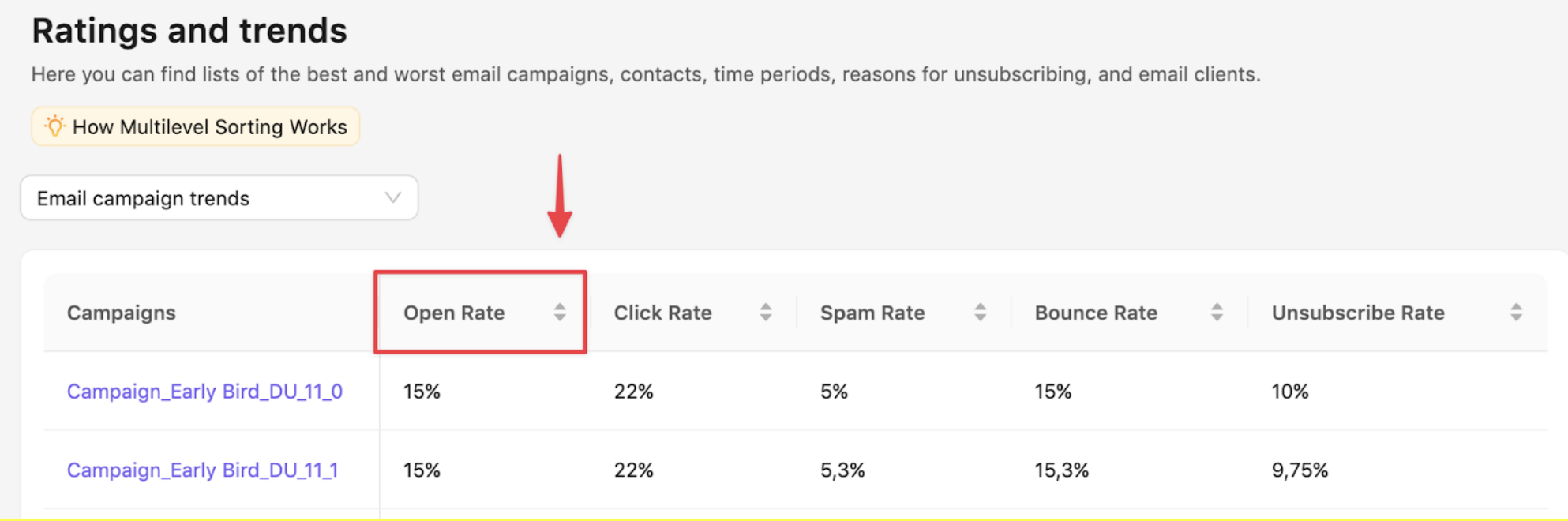
Step 2 – Add the next sorting level.
- Click the header of the column that represents the metric you want to sort your campaigns by.
- Click the header of another column to apply additional sorting criteria.
- Repeat to add a third level if needed.
Example:
- Primary sort: Open Rate (highest to lowest)
- Secondary sort: Click Rate (highest to lowest)
- Result → You’ll first see campaigns with the best open rates, and within those, the ones with the highest click performance.
Changing Sorting Priority
- The first column you select is always the top priority.
- To change priority click Clear Sorting, then select columns again in your desired order.
Tips for Effective Analysis
- Combine engagement metrics to find the most successful campaigns.
- Example: Open Rate → Click Rate → Unsubscribe Rate.
- Use sorting by date + performance to identify trends over time.
- Save frequently used sorting combinations as custom views (if available in your plan).
Limitations
- Multilevel sorting works on visible columns only — hidden metrics must be re-enabled in column settings.
- Some charts (like visual summaries or heatmaps) are not affected by sorting changes.
Still have questions?