Understanding domain statuses: Verified, Processing, Unverified
Managing sending domains
Why DNS records matter for email deliverability
Adding & verifying DNS records (SPF, DKIM, DMARC)
Checking & resolving domain blacklist issues
Managing sender email addresses
Sender address requirements and best practices
What to do if a sender address is in use by active campaigns
Understanding shared vs. dedicated IP addresses
Connecting or disconnecting a domain to/from an IP address
Buying & managing dedicated IP addresses
User roles & statuses
User status explained: active and deleted users
How to add a new user: user invitations and registration
Managing user permissions and access rights
Default permissions for additional users
Deleting users
Transferring admin rights to another user
What happens after admin rights are transferred?
What happens when permissions are disabled for a user?
How to create your first email campaign
Campaign card overview: General, Contacts, Email template, Scheduler
Naming and renaming campaigns
Understanding campaign statuses: Waiting, In progress, Paused, Finished
Saving progress and navigating between campaign blocks
How to set up the sender email address and name
Managing reply-to addresses in campaigns
Selecting and managing IP addresses for sending
How to select recipients: Contacts, Groups, Segments
Excluding contacts and groups from a campaign
Understanding contact limits and subscription packages
What to do if you exceed your email sending limit
Validating contacts before sending: Email Checker explained
Choosing and editing email templates for campaigns
Uploading custom HTML
Writing effective subjects and preheaders
Adding and managing UTM parameters
Scheduling campaigns: send now or later
Setting up delivery dates, times, and days of the week
How to calculate and adjust sending volume over time
Managing dedicated IP expiration and renewal
How to preview and test your campaign
Managing and editing your test email group
Using the campaign calendar: viewing, filtering, and creating campaigns
Understanding campaign statuses: Active, Scheduled, Completed
Viewing campaign details and quick actions from the calendar
Navigating the campaign list: columns and filters
Searching and filtering campaigns by name, date, and status
Campaign card: overview, timeline, and audience
How to pause, continue, or delete a campaign
Understanding campaign statuses: Planned, Active, Paused, Finished
Campaign performance & analytics
Using heatmaps to analyze email engagement
Automations
Creating a New Automation
Understanding Automation Templates
Managing Your Automations List
Automation Builder: Overview and Navigation
Setting Up Automation Details (Name, Description, Tags)
Working with Triggers
Working with Actions
Managing Elements in the Workflow Canvas
Running and Pausing Automations
Automation Settings Panel
Managing Emails and Templates Inside Automations
Contact Management Inside Automations
General email performance
Tracking general email performance in Sendigram helps you understand the overall health of your campaigns. Instead of focusing only on individual sends, you can measure long-term trends, compare results, and refine your email marketing strategy.
1. What Is General Email Performance?
- A summary view of your campaigns' results over time.
- Combines key metrics such as deliverability, engagement, and subscriber behavior.
- Helps answer big-picture questions like:
- Are open and click rates improving?
- Is deliverability stable or declining?
- Are unsubscribes and complaints within safe limits?
2. Where to View General Performance in Sendigram
- Go to Statistics → General metrics.
- Select the reporting period.
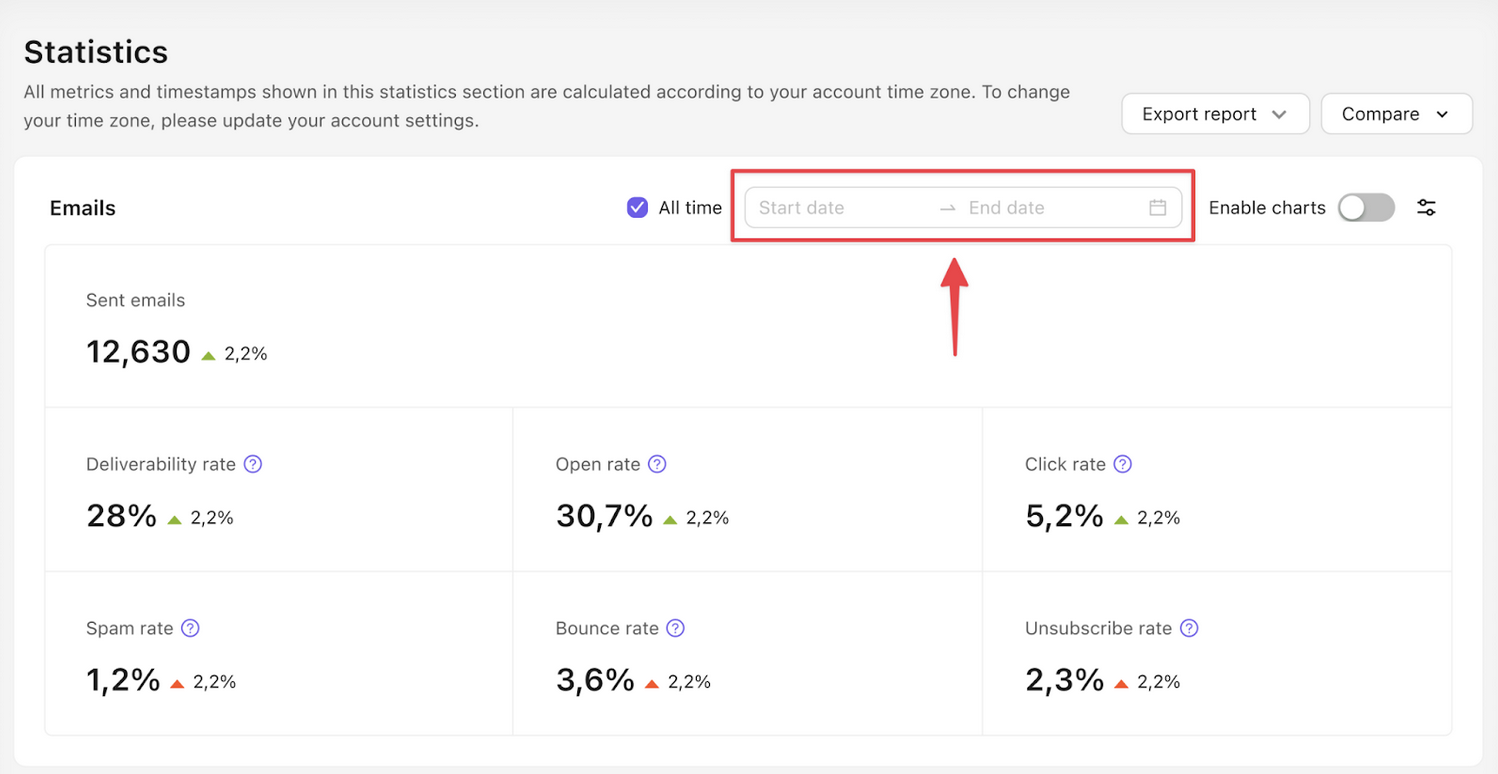
- Review aggregated stats across all campaigns:
- Sent emails
- Deliverability rate
- Open rate
- Bounce rate
- Click rate
- Spam rate
- Unsubscribe rate
3. Key Metrics to Watch
- Deliverability Rate = Delivered + Sent × 100
- Shows if your emails are reaching inboxes. Aim for > 98%.
- Open Rate = Opens + Delivered × 100
- Reflects subject line, preheader, and sender name effectiveness.
- Click Rate = Clicks + Delivered × 100
- Measures how engaging your email content is.
- Click-to-Open Rate (CTOR) = Clicks + Opens × 100
- Shows how many people who opened were motivated to click.
- Bounce Rate = Bounces + Sent × 100
- High bounce rate signals list quality issues.
- Spam Rate = Complaints + Delivered × 100
- Keep this below 0.1% to avoid inbox penalties.
- Unsubscribe Rate = Unsubscribes + Delivered × 100
- Indicates if your frequency or content is off-balance.
4. Using General Performance Data
- Identify trends: Compare performance over weeks or months.
- Spot issues early: Rising bounce or complaint rates warn of deliverability problems.
- Benchmark performance: Compare results against industry averages.
- Optimize campaigns: Use insights to improve subject lines, targeting, and content.
5. Best Practices
- Track performance regularly, not just after big campaigns.
- Segment by audience type (e.g., newsletters vs. promotions) to spot differences.
- Clean your lists to reduce bounce rates.
- Run A/B tests to improve weak metrics.
- Use Email Checker and heatmaps to refine quality and engagement.
Still have questions?